MoneyWorks Manual
Putting a Sales Invoice on Hold
MoneyWorks has several ways to help you manage debtors who may be overdue in paying accounts or over their credit limit.
When an invoice is put on hold—that is, the Hold check box on the invoice is checked—MoneyWorks will not allow the invoice to be posted.
If you also want subsequent invoices for the debtor to automatically be put on hold, set the Hold option in the Name record. If the Auto Credit Hold check box in the Preferences dialog box has been turned on, you will be alerted as you enter a transaction for a debtor that has an invoice outstanding beyond the number of days you specify or is over the credit limit specified in the Debtor record. (A zero limit is assumed to be unlimited.)
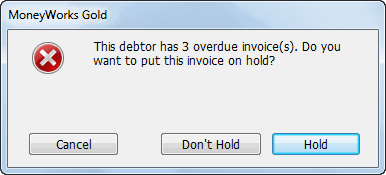
Clicking Hold in either of these instances will set the Hold check box for the invoice. This can also be set manually.
Invoices on hold cannot be posted.
Printing and emailing Sales Invoices
There are two ways to print/email sales invoices:
- By setting the Print option on while the transaction is open on the screen. When the transaction is accepted, the print process will commence;
- By highlighting the invoice(s) in the Transactions list and choosing Print Sales Invoice from the Command menu (or press Ctrl-[/⌘-[), or clicking the Print Invoice toolbar button.
Note: Users who have the MoneyWorks Privilege option Print Unposted Invoice turned off will not be able to print an invoice unless it has been posted.
Note: Transactions that have been printed (or emailed) have a printer icon in the P (for Printed) column of the Transactions list. Click on the field heading to sort the invoices—the unprinted invoices will be at the top of the list if it is sorted in descending order.
When printing/emailing an invoice, the Print Sales Invoices window will open.
- Choose the form to be used for formatting the invoice from the Use Form pop-up menu
- Enter any text in the optional Message edit box
This message will be printed on all the invoices being printed. You can type up to 80 characters into this edit box.
- Check the Print “Copy” if Already Printed option if you are reprinting an invoice
If this option is checked and the invoice has already been printed, the words “Copy of” appear next to Tax Invoice1. This is useful if the debtor requests another copy of the invoice.
If the invoice has not already been printed this is ignored.
Note: If this is the first time that you have printed an invoice, you should click the Layout button to check the positioning and paper size.
- Click Print to print the invoice
The standard Print dialog box will be displayed, allowing you to set the number of copies.
If you are using a Plain invoice, and if the Print this Logo and/or Print Address & Phone Nos options in the Company Setup window have been checked, the company logo and/or address details will be printed at the top of the invoice. You may want to print the invoice on letterhead which contains these details. In this case, you should ensure that the options are off and that the top margin in the page setup is large enough that your letterhead is not overprinted.
For further information on printing see Printing Invoices, Receipts and other Transaction Forms
To email invoices
- Choose your invoice from the Use Form pop-up, select the email output option and click Send
The Mail Attachment window will be displayed.
- Proceed as described in Emailing Forms
1 On customised invoices, this will only work if it has been explicitly catered for in the logic. ↩